
ADVERTISEMENT
Adding Text Effects
Introduction
Microsoft Word is a versatile tool that goes beyond basic text editing. Turn ordinary documents into visually stunning works of art. In this step-by-step guide, we’ll walk you through the process of adding text effects to your Microsoft Word documents, unlocking your creative potential, and making your content stand out.
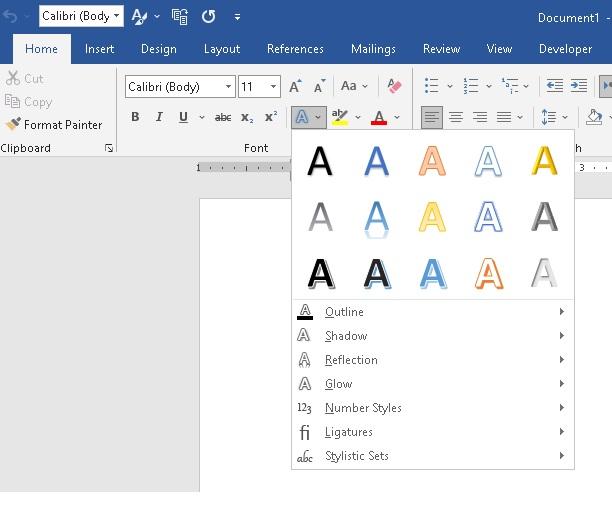
The text effects and typography icon is located under the Font group. Simply click on the A icon to add some creativity to selected text or paragraph headings:
Choose Your Desired Effect
A menu with various text effects will now appear. Take your time to explore the different options and choose the effect that suits your document’s theme and purpose the best.
- Glow: Add a soft glowing effect around your text, making it appear vibrant and attention-grabbing.
- Shadow: Apply a shadow to your text, giving it a three-dimensional look that pops off the page.
- Reflection: Make your text appear as if it’s reflecting on a shiny surface, adding depth to your content.
Removing text formatting
The clear all formatting icon is an excellent way of getting rid of multiple formats on selected text, as well as returning text to the plain default text:
- Simply highlight the text that you wish to remove formatting from.
- Click on the clear all formatting icon:

- The text is now set to the normal font attributes.
Frequently Asked Questions (FAQs)
Q1: Can I apply text effects to multiple parts of my document?
Absolutely! You can apply text effects to as many parts of your document as you like. Mix and match different effects to create a visually appealing and cohesive document.
Q2: Will the text effects work in other word-processing software?
Microsoft Word’s text effects are specific to the application. While your document will retain the formatting within Word, the effects may not be visible if opened in other word processing software.
Q3: Can I remove or change text effects later?
Yes, you can always remove or change text effects in Microsoft Word. Simply select the text with the applied effect, go back to the “Text Effects” menu, and choose the “No Effect” option to remove it. To change an effect, select the text, access the menu, and choose a different effect.
Conclusion
Congratulations! You’ve successfully mastered the art of adding text effects in Microsoft Word. You now have the power to create visually appealing and captivating documents that leave a lasting impression on your audience. Remember to use text effects sparingly and purposefully, ensuring they complement your content rather than overpowering it.
So go ahead and unlock your creative potential with text effects in Microsoft Word. Happy writing!