
Check A Number It Is Prime or Not
This C program checks whether a given number is prime and displays the result.
Generate Table of Given Number
This program takes user input for a number and the range for the multiplication table, validates the input, and then prints the multiplication table within the specified range if the input is valid. If the input is not valid, it provides an error message.
Celsius to Fahrenheit
Celsius to Fahrenheit
Calculate Gross Salary
This code calculates and displays various components of an employee’s salary, including dearness allowance, house rent allowance, and provident fund deduction. It then calculates the gross salary based on these components and the user-provided basic pay.
Calculate Bonus On Salary
This code determines the bonus and updated salary for an individual based on their gender and initial salary. It demonstrates the use of conditional statements in C for making decisions based on user input.
Multiplication By Addition
This code performs integer multiplication using repeated addition and subtraction. It handles both positive and negative values of ‘a’ and ‘b, ensuring that the result is accurate.
Convert Given Days to Years, Week and Days
This code takes a user input of a total number of days and breaks it down into the equivalent number of years, weeks, and days. It performs the calculations and provides the result in a human-readable format.
Given Year Is Leap Year Or Not
This C program checks whether a given year is a leap year or not. A leap year is a year that is evenly divisible by 4, except for years that are divisible by 100 but not by 400.
Swap Two Numbers Without Using 3rd Variable
This C program takes two integer inputs, ‘a’ and ‘b’, and swaps their values without using a temporary variable.
Swap Two Numbers Using 3rd Variable
This C program takes two integer inputs, ‘a’ and ‘b’, and swaps their values using a temporary variable ‘c’.
Print Odd Numbers Till ‘N’
This C program takes an integer ‘n’ as input from the user and then prints all odd numbers from 1 to ‘n’.
Weather Given Number is Odd or Even
This C program determines whether a given integer is even or odd.
Alphabets from a to z
This C program prints the lowercase English alphabet in a continuous sequence.
Print Alphabets From A to Z
This C program prints characters in uppercase from ‘A’ to ‘Z’ one character per line.
Print Numbers From 1 to 100
This C program prints the numbers from 1 to 100.
Hello World
This code is a minimal “Hello World” program written in C. Its primary purpose is to demonstrate the basic structure of a C program and how to display text on the screen.

Text alignment
Microsfot word Left, Right, Center, and Justify text alignment. The alignment options are located under the Paragraph group, under the Home Tab as shown. After applying each of the alignment types, you will see the following result: Left Alignment (By Default) Center Alignment Right Alignment Justify Alignment

Manual List
There are various ways to set up a bulleted or numbered list, either by typing the text first and then converting the list into a specific list type or by choosing the list type first and then beginning typing.
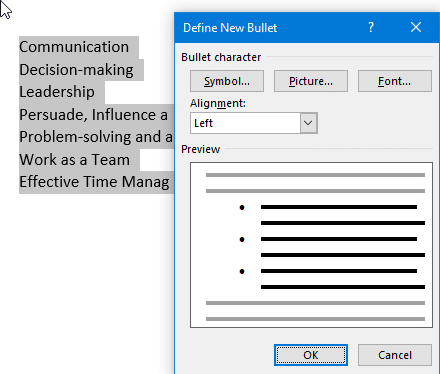
Define a new bullet
Defining a New Bullet Symbol Let’s see how we can change the appearance of the bullet, as follows: For illustration purposes, we have used Webdings as our bullet font in the previous screenshot.

Bulleted List font attributes
After a symbol has been applied to text in a document, you might find that the symbol is too small to be seen or not in alignment with the adjacent text.

Bulleted list
Introduction When it comes to organizing information in your documents, bulleted lists are a powerful tool. They help break down complex ideas into digestible points, making content more reader-friendly. Creating a Basic Bulleted List To create a basic bulleted list in Microsoft Word:

Change Case
Changing The Text Case This tutorial will uncover Microsoft Word Change cases like Upper Case, Lower Case, Sentence Case, Capitalize Each Word Case, and Toggle Case Options. In Microsoft Word, you can easily change the text case of your selected text or an entire paragraph using different options. Here’s how to do it: Select Your …

Clear All Formatting
Fortunately, Microsoft Word provides a handy feature known as “Clear All Formatting or Reset Document,” which allows you to reset the text to its default style, removing any unwanted formatting effortlessly. In this tutorial, we will delve into this feature, exploring how it works and why it is essential for any Word user. Imagine you …
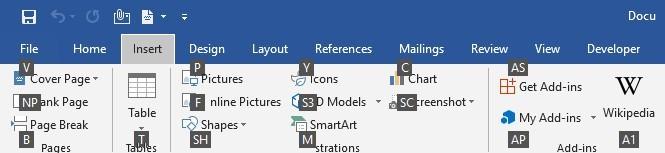
Shortcut keys to access the ribbon
Pressing the Alt key on your keyboard grants you access to the shortcut keys available for each of the tabs. If you look at the tab shortcuts available (see the following screenshot), you will see that the Insert tab shows N as the shortcut key:

File Tab
The Microsoft Office Backstage view may appear when you start a Microsoft Office program or click the File Tab. Whether you need to create new files, open existing files, print, save, or change settings, you can do it in Backstage. When you first launch Microsoft Office 2010, 2013, 2016, or 2019, the Backstage view, the Start page, is displayed. Create new file To create a …